Amazon Ads
KDP keywords: the 7 boxes and the ad keywords that eat your budget
 Tap to open full size
KDP keywords live in two places: the seven keyword boxes you fill in when you publish, and the keywords you pay for in Amazon Ads. The first are free and follow KDP's rules; the second cost money on every click. Below: how to fill the seven boxes, and how to find the ad keywords that eat your budget in ten minutes, using our own reports.
Two different places where keywords live
KDP keywords — the seven keyword boxes you fill in when you publish a book. They tell Amazon which searches your book should show up for in regular search. They cost nothing and work all the time. Authors often call them backend keywords.
Ad keywords — the words you pay for in an Amazon Ads campaign. Every click costs money, so this is where most wasted budget hides.
A separate topic is placement bid adjustments and bidding strategy: on dynamic bids up and down, increases stack and a click can cost more than you set. That's covered with real numbers in Amazon Ads placements and bidding strategy.
We'll start with the seven boxes: they're free, and they're where most mistakes happen.
The 7 KDP keyword boxes: how to fill them
The keyword boxes sit on the first page of the publishing flow, together with the description and categories. KDP's instruction is short: "Use up to seven keywords or short phrases", one per box, and watch the character limit shown in each field (KDP Help on keywords, as of September 2026).
What to put in. What a buyer types into search that isn't already in your title: who the book is for, what problem it solves, what constraint it respects. Not "cookbook" but "cookbook for beginners no oven". Longer, specific phrases face less competition and convert better. For fiction, KDP's own examples are setting (Colonial America), character types (single dad, veteran), character roles (strong female lead), plot themes (coming of age, forgiveness) and story tone (dystopian, feel-good).
Use the word order people search in. KDP's example: people search for "military science fiction", not "fiction science military". No quotation marks — KDP lists them among things to avoid.
Don't repeat what Amazon already knows. KDP asks you not to duplicate information that's already in your metadata: title, contributors, categories. It's wasted space.
Don't repeat the same word across boxes. In our experience once is enough: Amazon combines the words for you.
What KDP tells you to avoid (same help page):
- statements about quality — "best novel ever";
- time-sensitive words — "new", "on sale", "available now";
- terms common to most items in the category — "book";
- spelling errors;
- variants of spacing, punctuation and capitalization of the same word;
- information that misrepresents your book, such as names of authors you're not affiliated with;
- brand names you don't have permission to use;
- quotation marks;
- Amazon program names — "Kindle Unlimited", "KDP Select";
- HTML tags.
KDP adds that all keywords must follow its Terms and Conditions. The temptation to add a bestseller's title or a famous author's name is real, but it's exactly the kind of misleading metadata KDP says to avoid — and not worth risking your account over. What can get a KDP account closed is covered in KDP account terminated.
Test before you publish. Type your phrases into Amazon search and look at the results and the autocomplete suggestions. If the results aren't books like yours, change the phrase.
You can change keywords any time after publishing — unlike some other details (what you can't change after publishing). In your Bookshelf, click the "…" next to the book, choose to edit the book details, update the Keywords section, save, and publish again from the pricing page. The whole publishing flow is in how to publish a book on Amazon KDP.
Ad keywords: what you're paying for
A bad KDP keyword costs you nothing but a few missed impressions — you'll never even notice it. A bad ad keyword actively spends money: it can collect clicks for months without a single order, and you won't see it in total spend until you open the keyword report.
That's why KDP keywords get chosen once at publishing, and ad keywords get checked constantly. Below: what to read in the report, how match types work, how to find the keywords that lose money, and in what order to clean up.
What to look at in the keyword report
For every keyword, the Amazon Ads console shows the same set of columns. Read them together, not one by one.
| Column | What it means | What it tells you |
|---|---|---|
| Impressions | how many times the ad was shown | whether buyers see you at all |
| Clicks | how many times it was clicked | whether the cover and title interest people |
| CTR | clicks as a share of impressions | how well the search matches the book |
| Spend | how much you spent | what this keyword costs you |
| CPC | average cost per click | how competitive the search is |
| Orders | orders attributed to the ad | the column that matters |
| ACOS | ad spend as a share of ad sales | whether the keyword pays off |
The main rule: judge a keyword by spend relative to orders, not by spend alone.
Broad, phrase and exact match
Every manual keyword has a match type: broad, phrase or exact. It decides which searches your ad can show for. According to Amazon Ads help on match types (updated July 29, 2026), all three account for plurals, misspellings and translations.
| Match type | When the ad can show | What we use it for |
|---|---|---|
| Broad | words in any order, plus synonyms, variations and related terms; the keyword itself may not appear in the search | gathering data, finding new phrasings |
| Phrase | the phrase or sequence of words, and close variations, appears in the search | a working balance of reach and precision |
| Exact | the exact term and its close variations | scaling what already sells |
Two details from the same page. You can't change a keyword's match type after the campaign is created, but you can add the same keyword with another match type. And if one keyword runs in several match types with different bids, the one with the highest bid is used.
How we use them. At the start, broad and phrase. Broad brings wide traffic and, more importantly, shows you in the search term report how people actually search. After two or three weeks, move the best phrases into exact and give them a higher bid.
Don't switch broad off: it keeps finding new searches. But it's also the match type that brings the most irrelevant traffic — which is where negative keywords come in.
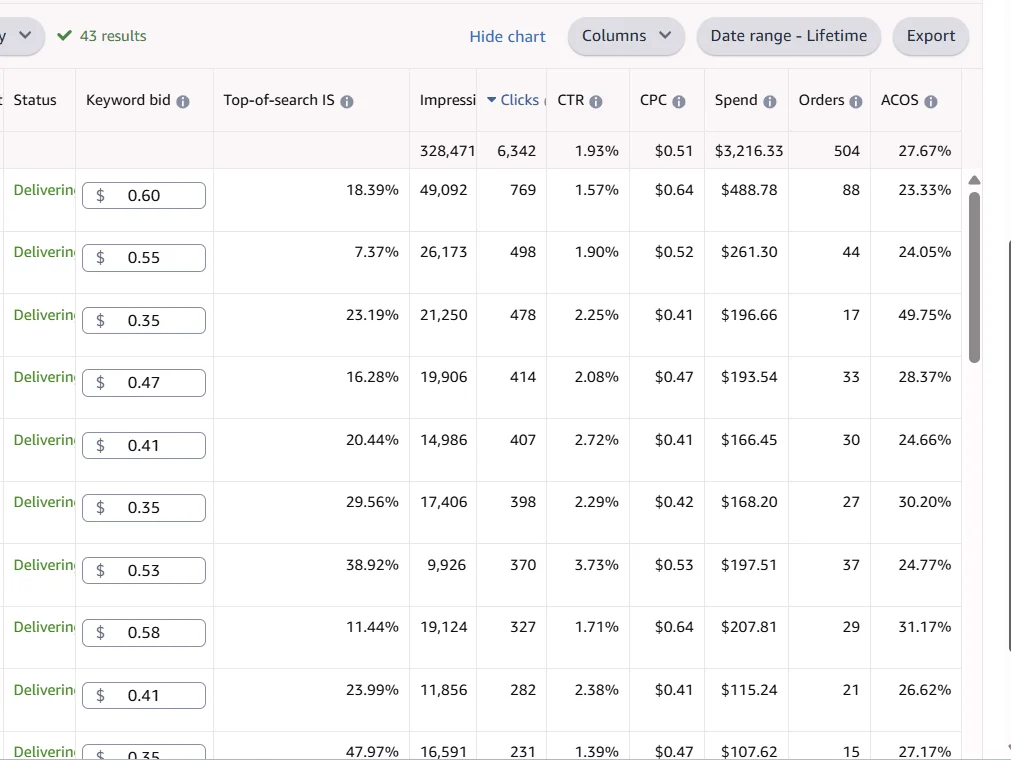
What a live campaign looks like

Let's read the rows.
The first row is the workhorse: 278,077 impressions, 1,913 clicks, $1,375.53 spent, 314 orders, ACOS 23%. This keyword carries the campaign.
The second row is more interesting: 110,060 impressions but only 233 clicks — a CTR of 0.21%. Yet those clicks produced 32 orders at 10.46% ACOS. The keyword barely touches the budget and brings the cheapest sales in the campaign.
What to do with it? Not pause it — raise the bid. A low CTR with an excellent ACOS usually means lots of impressions in low positions: people see the book somewhere down the page. There's room to grow.
How to find keywords that lose money
Now the opposite case.

The campaign's total ACOS is 28.03%, which looks fine. But look at the second row: 621 clicks, $441.53 spent and only 37 orders. ACOS 61.53%.
For a $24.99 paperback that earns about $10.98 in royalty, the break-even ACOS is about 44%. So this keyword loses money on every sale and drags the whole campaign down. Pause it and you lose 37 orders, but those orders cost $441.53 in ads — more than they earned in royalties — so profit goes up and the campaign's ACOS drops right away.
That's why the total ACOS isn't enough: a normal-looking campaign can hide a keyword that eats the profit. To find your own break-even point, use our KDP royalty and break-even ACOS calculator.
Negative keywords: more precise than pausing
Pausing a keyword is a blunt tool. Often the keyword is good but pulls in some traffic you don't want. Instead of pausing it, add a negative keyword: the ad stops showing for that specific search, and the keyword keeps working.
Example. The keyword "meal prep cookbook" sells, but it also triggers searches like "meal prep containers" and "meal prep bags" — people shopping for containers, not a book. Pause the keyword and you lose the sales. Add "containers" and "bags" as negatives and you keep the sales and drop the useless clicks.
Where to find them. In the search term report in the Amazon Ads console. It shows not your keywords but the real searches your ad appeared for. We go through it every two weeks.
What we usually add as negatives:
- Products instead of books — containers, bags, kit, set, tool
- Formats you don't sell — kindle, audiobook, ebook, if you only sell print
- "Free" — free, pdf free, download
- Other brands and author names — they bring people looking for a specific book
- Clearly the wrong audience — kids, if the book is for adults
Two kinds of negatives. Per Amazon Ads help: negative phrase stops the ad on searches that contain the complete phrase or close variations (up to 4 words, 80 characters); negative exact stops it only on the exact phrase or close variations (up to 10 words, 80 characters). Negative phrase is the one you'll need most. You can't change the match type of an existing negative keyword.
Careful: a negative that's too broad can cut off searches that sell. Before adding one, check in the report how many orders that phrase brought.
You don't have to find them by hand. AuthorLens, an analytics dashboard made only for Amazon KDP, lists every search in each campaign with its clicks and spend, has AI flag the ones that aren't about your book, and gives you a list ready to paste. Its Ad Coach adds a list of fixes with the estimated dollar impact of each.
We use AuthorLens daily and have a business relationship with it.
How to collect negatives in AuthorLens, step by step


- Open the campaign. Go to Campaigns and click the campaign name. At the bottom there are two tabs: Searches — every shopper search with clicks, cost per click, spend, purchases and sales — and Negatives — what's already blocked.
- Set the rules once. Click Negative keyword rules. The top box holds rules for every campaign and comes pre-filled. The core idea: the AI asks one question — was this shopper after a different book, or not a book at all? It never judges on clicks or money. Anything inside the book's subject (rival titles, other authors, editions, misspellings, broad words) it keeps; a neighbouring subject the book doesn't cover, and anything that isn't a book (a product, a person, a film, software), it blocks; when unsure, it keeps.
- Describe the book. Below, under This book: What this book is about — what the book is and which subjects a shopper could confuse it with; Rules for this book — what to always block and always keep for this title. Write in English even for a German or Spanish marketplace. Click Save; the book's rules follow it into every campaign that advertises it.
- Run the check. Click Find negatives with AI · N searches. The AI checks each search once and flags the irrelevant ones. It runs on your own ChatGPT or Claude subscription, so there is no API key to set up and no per-question bill.
- Review and add your own. The AI only answers “is this about our book?” and writes the reason next to every search it flags: for example, “Names a different author” or “seeking religious/faith content, not a cookbook.” What counts as off-topic comes from your rules in step 2. Searches that are dead by the numbers — 10+ clicks, no purchase — you tick yourself: sort by Total cost or Clicks.
- Copy. A bar with “N searches selected” and a Copy button appears above the table. Click Copy.
- Paste into Amazon Ads. Campaign manager → campaign → ad group → Negative targeting tab → Add negative keywords → choose Negative exact (that phrase only) or Negative phrase (every search containing it) → paste → Add keywords → Save.
- Confirm they're blocking. Back on the Negatives tab, click Refresh: pasted terms show Blocking on Amazon. Terms you copied but haven't pasted yet are listed too, so nothing gets lost. Copy all copies the whole list — handy for a new campaign for the same book.


How often: every 3–7 days. AuthorLens doesn't change anything in your ad account — the paste is yours. Track rankings, next to Copy, puts the selected searches on daily rank tracking.
Cleanup order
Work in this order, from the cheapest fix to the hardest.
1. Spend, zero orders. The easiest call: pause it. Give the keyword at least 15–20 clicks first; if there's still no sale, it isn't working.
2. ACOS well above break-even. Work out your threshold — royalty ÷ price × 100 — and compare. Anything well above it is under suspicion. More on this in Amazon Ads for authors: profit, not ACOS.
3. Lots of clicks, few orders. Here the problem usually isn't the keyword but the book's page: people came and left. Check the listing before you pause anything — see why a book is not selling on Amazon.
4. Low CTR, good ACOS. Leave it alone and raise the bid.
Most important: don't change everything in one day. After pausing the losers, give it two weeks and look at the campaign as a whole.
How many keywords you need
Beginners often add two hundred keywords at once, to "cover everything". That's a mistake: the budget spreads thin, no keyword gathers enough data, and a month later you can't tell what works.
What works for us: 10–20 keywords at the start. Within two weeks you'll see which ones bring orders. Then the weak ones get paused, the strong ones get higher bids, and new ones come in from real search terms.
The logic is simple: at $15–20 a day and about $0.80 a click, a campaign buys 20–25 clicks a day. Twenty keywords share that, and each collects the 15–20 clicks it needs for a first verdict in about two weeks. Two hundred keywords get one or two clicks each and never tell you anything.
So the list grows gradually: every two weeks you remove a few dead keywords and add a few new ones from the search term report. After a couple of months, only the words that have proven they bring orders are left.
Where to find new keywords
AuthorLens. Its Keyword ideas screen shows words buyers used that aren't in your listing yet, and it tracks your book's ranking daily for up to 500 keywords, so you can see which keyword went up and which slipped — and where a bid increase or a place in your title or keyword boxes makes sense.
Targeting with AI. If your account has this Amazon Ads beta, it adds keywords similar to yours on its own — but only if you tick it when you create the campaign. See KDP rule changes 2026.
Amazon search suggestions. Start typing your topic and Amazon shows you how people search.
Competitor listings. Look at the titles and subtitles of books that already sell in your niche.
The search term report. The most valuable source, available only after launch: the real phrases people used to find you. It often includes phrases you'd never have guessed.
Helium 10 — keyword and niche research built for Amazon sellers. Promo codes from Vova Even: VOVA10 — 10% off for life, VOVA6M20 — 20% off the first six months. What in Helium 10 is actually useful for books: Helium 10 for KDP.
Publisher Rocket — a keyword tool built for authors: it shows which keywords competitor books rank for and estimates how competitive a search is. Details in our Publisher Rocket review; all the options side by side in best KDP tools.
Choosing keywords is half the job. The other half is knowing where the book ranks for them without ads: see Amazon Keyword Rank Tracking for Books.
The short version
Amazon Ads isn't "set it and forget it". It's one table you read every day: which words brought orders and which only spent money.
Ten minutes a day can save hundreds of dollars a month, and that habit is what turns a budget leak into a campaign you control. Just judge each change no sooner than 7 days after you make it, so there is data to judge by.
If you remember one thing from this article, make it this: judge a keyword by orders, not by spend. An expensive keyword that sells is a good keyword. A cheap keyword that sells nothing is worse, however little it costs.
Don't want to deal with ads yourself? Campaign setup and ongoing management can be handed to an ads specialist we trust — message him on Telegram @Lamgr_557359.
FAQ
How do I fill in the 7 KDP keyword boxes?
Use up to seven keywords or short phrases, one per box: what a buyer types into search that isn't already in your title, subtitle or categories. Keep the word order people search in and skip quotation marks. KDP says to avoid quality claims like best, time-sensitive words like new or on sale, unrelated author names, brands you don't own and program names like Kindle Unlimited.
Can I change my KDP keywords after publishing?
Yes. KDP Help says keywords can be changed at any time after publication. Edit the book details from your Bookshelf, update the Keywords section and publish again.
What is the difference between KDP keywords and Amazon Ads keywords?
KDP keywords are the seven boxes in the publishing flow; they help your book show up in organic search and cost nothing. Amazon Ads keywords are what you bid on in a campaign, and every click costs money.
How many keywords should an Amazon Ads campaign have?
We start with 10 to 20, not two hundred. With too many, the budget spreads thin and no keyword gathers enough clicks to judge. After about two weeks, pause the ones that don't sell and add new ones from the search term report.
Broad, phrase or exact match: which should I use?
We start with broad and phrase: they gather data and show in the search term report how people really search. After two or three weeks we move the best phrases into exact with a higher bid, and keep broad running to find new searches.
Royalties and ad spend per book, side by side — the way we track our own books. It also shows the highest ACOS each book can afford. Leave your email and we'll send it.
One email a week at most. Unsubscribe in one click.
Real campaign numbers, not theory. One recent case: the same keyword in two match types — broad at 9% ACOS, exact at 49%. In the Facebook group KDP Ads & Profit we break down cases like this every week.
Join the group →or follow Darya on LinkedIn

Selling books on Amazon KDP since 2023, 77,600+ copies sold. Every number in these articles comes from our own KDP and Amazon Ads accounts.
All articles