Getting started
How to publish a book on Amazon KDP: step by step, 2026
 Tap to open full size
Publishing a book on Amazon KDP takes 10–15 minutes: Bookshelf → Create → details, content, pricing → Publish. The hard part isn't the buttons — some fields lock once the book is live, and a mistake there stays with it. Below is the whole path, field by field, with our real print costs and the places where you should stop and think.
Before you open KDP: what you can't undo
The publishing form itself takes 10–15 minutes. The hard part is that a few fields lock once the book is live, and a mistake there stays with the book.
For a paperback or hardcover, KDP locks the language, edition number, publication date, ISBN, imprint, trim size and royalty rate. The title, subtitle and primary author can still be edited within 72 hours of the first publication date, then they lock too. For a Kindle eBook, KDP Help lists the language, title, subtitle, edition number and primary author as locked, with no 72-hour window (KDP Help, as of September 2026). In our own account the eBook title and subtitle fields stayed open after publishing, so check yours before you rely on either. The full list, with screenshots, is in what you can't change after publishing on KDP.
Print type is the other trap: black-and-white and color interiors can't be switched after publishing. KDP says it directly: "After publication, you can't change your ink type between Standard color, Premium color, and black-and-white" (KDP Help). If you want both versions, you create two books. Switching paper type inside black-and-white is allowed, though (more on groundwood below).
Everything else — description, keywords, categories, price, cover, the interior file — can be changed at any time.
So the order is: settle the title, subtitle, trim size and ink type first, calmly, and only then open your Bookshelf.
The 2-books-per-week limit
One more thing to know before you plan launches. KDP now limits new titles: "we limit the number of titles you can create at the same time to 2 per book format each week" (KDP Help). That's two Kindle eBooks, two paperbacks and two hardcovers. KDP's announcement put it in force on September 21, 2026, with the allowance resetting every Sunday at 00:00 UTC. It doesn't affect books you've already created or published.
In practice, one book in all three formats takes one slot in each. If you're preparing several books, create them two a week instead of all on one day. Once the slots are used, you can't create a new title until the reset. Other 2026 changes are collected in KDP rule changes 2026.
What you need before you start
- A KDP account with tax information and payment details completed — do this first, KDP needs both to pay you. Setup step by step: KDP account setup.
- An interior file: a print-ready PDF for paperback and hardcover; EPUB, DOCX or KPF for Kindle.
- A cover: a full wrap PDF (back, spine, front) for print, a front-cover image for Kindle.
- Your title, subtitle, description, 7 keywords and 3 categories written down in advance.
If the book doesn't exist yet, start with how to create a book for KDP: page count and format are worked out from the royalty, not the other way round.
Step 1. Choose the format
In KDP, open Bookshelf and click Create. You get three options.
Kindle eBook. Read in the Kindle app and on Kindle devices. Upload it as EPUB (Google Docs exports to EPUB, for example). KDP also recommends DOCX and KPF, the file Kindle Create makes (KDP Help).
KDP will accept a PDF too, but we don't recommend it, and neither does KDP: a PDF is a fixed page, and it doesn't support reflowable text. On a phone or tablet the reader has to zoom and drag the page to read it. That's exactly what earns negative reviews, and they stay on the book even when the writing is good. EPUB adjusts the font size to any screen: phone, tablet, computer, e-reader.
DRM. DRM (Digital Rights Management) is the copy lock on Kindle files. Since January 20, 2026, if you publish an eBook without DRM, buyers can download a DRM-free EPUB or PDF copy. Decide which you want before you publish.
More on the eBook side in how to sell ebooks on Amazon KDP.
Paperback. Amazon prints each copy after it's ordered and ships it to the reader. This is the main format: in our experience it brings about 90% of royalties.
Hardcover. Mostly bought as gifts, so noticeable sales tend to come in Q4.
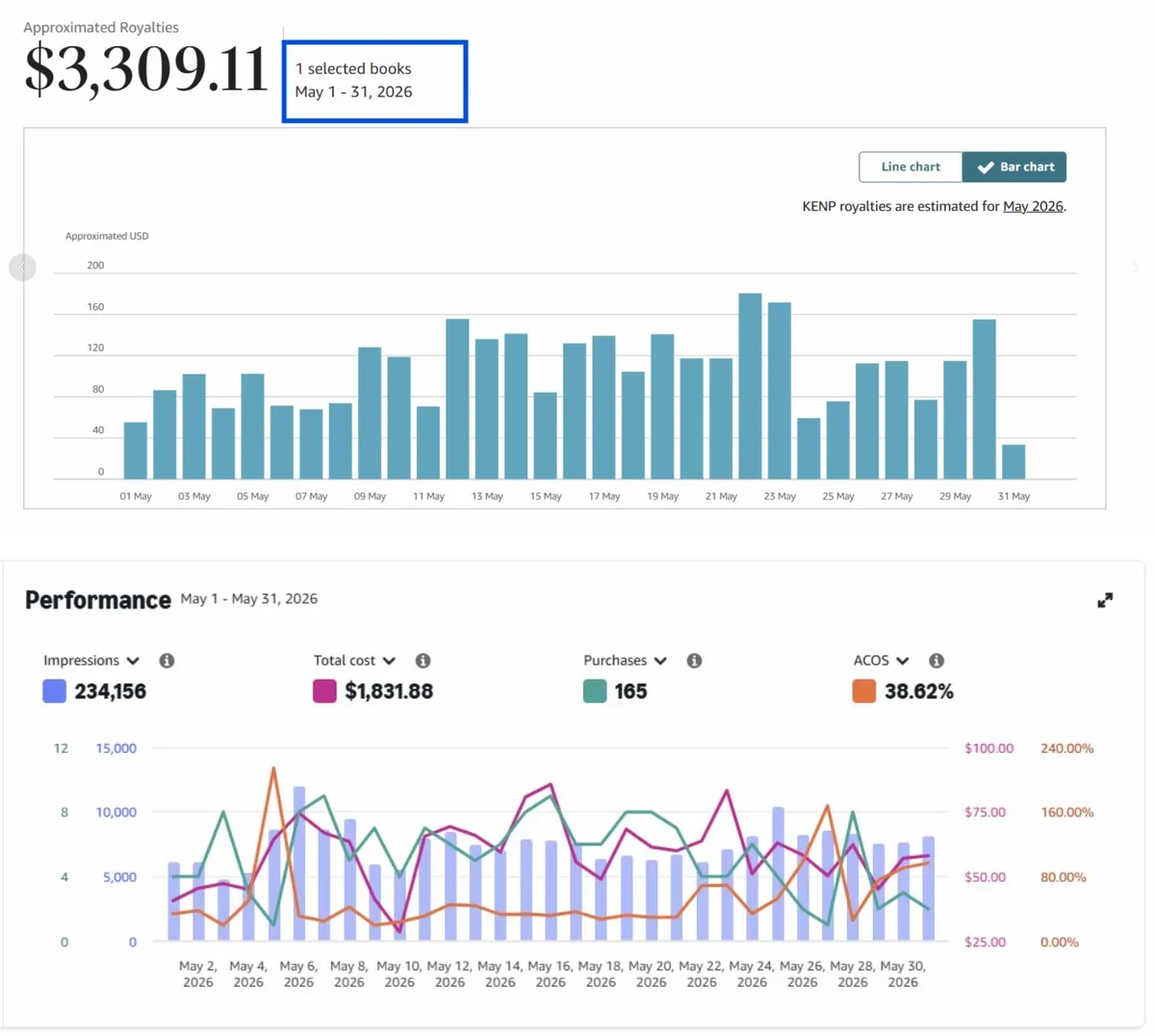
The money gap is real. On our books, Kindle and hardcover rarely bring more than $200 a month per title, while the paperback of the same book can bring $2,000–3,000. If you're starting with one format, start with the paperback.
Step 2. Book details: language, title, author, description
This is the Details page, the first of three (Details → Content → Rights & Pricing).
Language. The language defines your market: English for the US, UK, Canada and Australia. It can't be changed later. The dropdown shows only languages KDP supports, and some are print-only (KDP Help). If your book isn't in English, check the list before you order the text.
Book title and subtitle. The most important fields on the page, because for print they lock after 72 hours. They need to sell and to contain the search phrases people actually type.
Series and edition number. Series is optional. Leave the edition number empty for a first edition: it can't be edited once the book is published.
Author and contributors. Your name or a pen name. There's no need to add a ghostwriter or designer — under a normal contract their work belongs to you. Add a co-author only if you actually share royalties.
Description. Two jobs: persuade a person to buy and contain your keywords. Write it for the reader, not the algorithm, but it works worse without keywords. No emojis: KDP lists them among prohibited content in descriptions (KDP Help).
Publishing rights. Confirm that you own the rights.
Primary audience. Whether the book contains sexually explicit images or titles, plus an optional reading age.
Step 3. Marketplace, categories and keywords
Primary marketplace. The category list depends on it: pick Amazon.com and you see US categories. KDP notes that "Categories also differ in each marketplace" (KDP Help).
Categories. You choose 3. They must match the content. A cookbook doesn't go into Travel: "If an unrelated category was selected, KDP may remove or change the category", and repeated misplacement is a quick way to get warnings on the account.
Keywords. Seven boxes, usually called backend keywords. Buyers don't see them on the book page, but Amazon uses them to decide which searches to show the book for. You can change them later: "You can change keywords and descriptions as often as you like" (KDP Help).
In our experience this is the most important spot on the whole page. The first weeks after launch decide where the book lands in search, and the seven keyword boxes do most of that work; the rest comes from the title, subtitle and description. How we pick them: Amazon KDP keywords.
For keyword research we use AuthorLens, an analytics dashboard made only for Amazon KDP. We use AuthorLens daily and have a business relationship with it. Before launch, its Discover and Opportunities screens show niches and competitors; after launch it tracks your book's rank daily for up to 500 keywords, and Keyword ideas lists words buyers used that aren't in your listing yet.
We also use Helium 10 — promo codes from Vova Even: VOVA10 — 10% off for life, VOVA6M20 — 20% off the first six months. How it fits a KDP workflow: Helium 10 for KDP. A one-time-payment alternative is Publisher Rocket: Publisher Rocket review.
Pre-order (Kindle only). For eBooks you can set a future release date. Pre-orders created on or after September 2, 2026 can be up to 18 months out, and the final manuscript is due at least 72 hours before release. Miss that deadline a second time and KDP suspends pre-orders for six months across your whole catalog (KDP Help). Paperbacks and hardcovers can't take pre-orders, only a scheduled release date.
Step 4. ISBN, print options, trim size and cover finish
This is the Content page.
ISBN. KDP gives you one for free, and for most authors that's enough. With the free ISBN the publisher shows as "Independently published", and it doesn't affect sales on Amazon. The catch: "Free ISBNs from us can only be used on KDP" (KDP Help). Buying your own ISBN only makes sense if you plan to sell the same edition outside KDP and want your own imprint name.
A Kindle eBook doesn't need an ISBN at all: "eBooks and low-content books are the only formats where an ISBN is optional." Amazon gives the eBook its own ASIN (Amazon's product ID).
Low-content checkbox. For journals, notebooks and planners. It can't be changed after publishing.
Print options. Five combinations in 2026, in two groups (KDP Help):
- Black-and-white: white paper, cream paper, or the new groundwood paper.
- Color: standard or premium, both on white paper. Groundwood isn't available for color.
If your book has illustrations, standard color is usually the better deal than premium. No illustrations — go black-and-white.
What printing costs
This choice decides the economics of the whole book, so look at the numbers, not at "it'll look nicer in color". Amazon.com printing costs for a 75-page book at 8.5 x 11 in (a large trim), from KDP's printing cost table:
| Print type | Printing cost | Royalty at $24.99 | Break-even ACOS |
|---|---|---|---|
| Black-and-white, white paper | $2.84 | $12.15 | 49% |
| Black-and-white, groundwood | $2.75 | $12.24 | 49% |
| Standard color | $4.02 | $10.98 | 44% |
| Premium color | $7.00 | $7.99 | 32% |
Royalty here is 60% of the list price minus printing, which applies to paperbacks priced at $9.99 or more on Amazon.com; at $9.98 and below the rate is 50% (KDP Help). ACOS is ad spend as a share of ad-attributed sales; break-even ACOS is royalty divided by price: above it, each ad sale loses money.
The gap between a black-and-white and a premium color book is more than four dollars per copy. Over a thousand sales, that's over four thousand dollars.
A detail almost nobody mentions: black-and-white printing costs a flat fee up to 108 pages. At a large trim, a 60-page book and a 108-page book both print for $2.84. Up to that line, every extra page is free.
In color, every page costs money. Here is one of our books at 78 pages — three pages more than the one in the table.

Same $24.99 price. But printing is now $4.14 instead of $4.02, and the royalty is $10.86 instead of $10.98. Three pages took 12 cents from every copy sold. Over a thousand sales, that's $120 for three pages you probably added without looking.
The rule for color books: extra pages cost you every time someone buys the book. In black-and-white up to 108 pages they're free; in color they're not.
The same screen shows royalties in other marketplaces: Canada $10.88, UK £6.04, Europe €5.51. Each marketplace has its own price, and the royalty is calculated from it, not from the US price.
Check your own numbers in Amazon's printing cost and royalty calculator, and what's left after ads in our KDP royalty and break-even ACOS calculator.
Groundwood paper: who it's for

Groundwood is the paper type Amazon added in late May 2026. It's available for black-and-white paperbacks only (no hardcovers), in all trim sizes, in 14 Amazon marketplaces (KDP Help). Eligible books are marked with a leaf icon in the account.
How it differs from white and cream:
- "Groundwood printing costs per page are approximately 5% lower than cream and white paper";
- higher opacity, so text on the back of the page shows through less;
- greyish and textured, like a mass-market paperback from the supermarket;
- a lower carbon footprint.
Who it's not for. Books with heavy ink coverage — lots of illustrations, large dark areas. KDP says those "are not eligible or recommended for groundwood paper to prevent ink from showing through." Coloring books and image-heavy books should stay on white.
Switching a published book to groundwood
This is one of the few print settings you can change after publishing — and only within black-and-white books.
Do it per book: Bookshelf → the three dots next to the book → Edit paperback content → change the paper type in Print Options and resubmit. KDP also has a bulk conversion tool. The book goes back through In Review and Publishing before it's Live again, and the lower printing cost applies automatically.
One extra step for thick books: above 350 pages on cream paper or 525 pages on white, the spine width changes. Recalculate the cover in the KDP cover calculator and upload a new cover. Below those page counts, the cover stays as it is.
Trim size, bleed and cover finish
Three settings on the same screen that live by different rules.
Trim size. Follow the competitors in your niche: every topic has a size buyers are used to. Trim size can't be changed after publishing. Check it twice: the size in the settings and the size of your PDF must match.
Bleed. No bleed is for a regular text book where nothing touches the page edge. Bleed is for pages where the background or images run to the edge: then the file needs an extra 0.125 in (3.2 mm) on the top, bottom and outside edges, which is trimmed off (KDP Help). Bleed isn't on KDP's list of locked fields, so if you got it wrong you can switch it and upload a corrected file after publishing.
Cover finish. Matte or glossy, your choice. Also changeable.
And since everyone asks: you don't have to order a proof copy before publishing. The Previewer shows layout errors right away, and KDP checks the book against print requirements after you submit. If something is wrong, you get an email explaining what to fix. Ordering a proof is still useful for color books, where the screen and the paper differ.
Step 5. Upload the files
Manuscript. For print, a PDF. We name the file after the book.
Cover. Use Cover Creator or upload your own PDF. We recommend a designer: the cover drives click-through rate, and click-through rate drives what you pay for ads. The exact template — front, spine and back — comes from the KDP cover calculator: enter trim size, paper type and page count, and download a PDF/PNG template to give your designer. Requirements and a brief for the designer: KDP book cover.
AI-generated content. KDP asks whether AI was used to create the text, images or translations. Content an AI tool created counts as AI-generated "even if you applied substantial edits afterwards"; content you wrote yourself and only edited or checked with AI is "AI-assisted" and doesn't need to be disclosed (KDP Content Guidelines). Answer honestly.
Don't believe the myth that ticking "AI-generated" kills a book — that Amazon stops showing it, ads stop working, sales dry up. In our experience, the AI disclosure doesn't change how a book sells. Amazon looks at whether people buy the book and don't return it. Hiding AI use and getting caught, on the other hand, is a real risk to the account.
Step 6. Check the book in the Previewer
Click Launch Previewer and go through the book page by page. It's not a formality: a file that looked perfect in your editor can shift after conversion — headers move, a table breaks, an image runs past the margin.
Look at three things:
- Quality check. The built-in check flags text outside the margins. If there are errors, KDP will send the book back anyway, and you lose a day.
- The first and last pages. Title page, table of contents and blank pages at the end are where layout breaks most often.
- Page numbers and headers. They sometimes slip or repeat on facing pages.
A technical limit people discover here: a hardcover needs at least 75 pages, a paperback at least 24 (KDP Help). Standard color starts at 72 pages.
Step 7. Price and royalty
This is the Rights & Pricing page. First choose territories, then set a price for each marketplace.
This is also where KDP shows the printing cost per copy. It's not in the Previewer; it appears only here, next to the price.
You can calculate the royalty before uploading anything in the KDP royalty calculator: choose format, paper, trim size, marketplace, page count and price. If you sell in several countries, check each one. What's left after advertising is what our KDP royalty calculator shows. How the math works in full: KDP royalties explained.
Start from the US market. Amazon keeps its share of the price, printing is subtracted separately, and what's left is your royalty. We keep at least $7.25–10 per copy: with a smaller margin, a book can't carry advertising and ends up at zero.
For a Kindle eBook, the 70% royalty applies at list prices from $2.99 to $12.99 on Amazon.com (the cap was $9.99 until July 7, 2026); outside that band it's 35%. If an older eBook is priced between $9.99 and $12.99, switch it to 70% yourself in Rights & Pricing: KDP doesn't do it automatically.
Once the US price is set, click Base all marketplaces on this price, and KDP converts it to the other currencies.
Expanded Distribution makes a paperback available outside Amazon — bookstores, libraries, distributors. It's one checkbox, but the royalty is lower: 40% of the list price minus printing (KDP Help).
Step 8. Publish
The last step is the terms. Tick the box, click Publish, and the book moves to In Review. While it's in review, the book is locked.
KDP's timelines: print books are reviewed within up to 72 hours; eBooks are "typically reviewed and published within 24 to 72 hours." A paperback's page can take up to 72 hours to appear on Amazon.com and up to 5 days in other marketplaces. If nothing has happened after three days, contact KDP support: technical glitches happen, and they don't fix themselves.
The most important thing to do on launch day. Once a print book is published, you have 72 hours to fix the title, subtitle and author name. After that they lock; only a plain typo can still be fixed through KDP Support.
So the same day, open your book's page on Amazon and read the title and author name as a buyer would. Not next week — today. What else locks, and why "I'll just republish it" doesn't work: what you can't change after publishing on KDP.
What to do after you publish
Publishing is the start, not the finish line. A book with no ads and no reviews just sits in search results. How sales shift from ads to organic over time: organic vs ad sales on KDP.
The next steps:
- Get the first reviews the legitimate way: how to get book reviews on Amazon.
- Launch an Amazon Ads campaign with a budget you can hold for months, not days.
- Watch the numbers for two weeks — impressions, click-through rate, conversion, ACOS — before changing anything. They show where the book loses buyers: why is my book not selling on Amazon.
- Judge the book by profit after ads, not by ACOS alone: Amazon Ads for authors: profit, not ACOS.
The whole path from niche to steady sales, in order: how to sell books on Amazon KDP.
Don't want to deal with ads yourself? Campaign setup and ongoing management can be handed to an ads specialist we trust — message him on Telegram @Lamgr_557359.
FAQ
How long does it take for a book to be published on KDP?
KDP says print books are reviewed within up to 72 hours and eBooks are typically reviewed and published within 24 to 72 hours. A paperback's page can take up to 72 hours to appear on Amazon.com and up to 5 days in other marketplaces. If nothing has happened after three days, contact KDP support.
Is it free to publish a book on Amazon KDP?
Yes. There is no fee for the account, uploading or keeping the book on sale, and KDP gives paperbacks a free ISBN. Printing is deducted from each copy sold, not paid upfront. The real costs are the writing, the cover and advertising.
What can't I change after publishing on KDP?
For paperback and hardcover: language, edition number, publication date, ISBN, imprint, trim size, royalty rate and the low-content setting. Title, subtitle and author name can be edited within 72 hours of first publication. Ink type can't be switched between black-and-white and color. Description, keywords, categories, price and cover can be changed any time.
How many books can I publish on KDP per week?
KDP limits new titles to 2 per format each week: two Kindle eBooks, two paperbacks and two hardcovers. The limit applies to creating new titles, not to editing published ones.
Which format should I publish first?
In our experience, the paperback. It brings about 90% of our royalties; Kindle and hardcover rarely bring more than $200 a month per book, while a paperback can bring $2,000 to $3,000.
Do I need to buy an ISBN for KDP?
No. KDP gives a free ISBN for paperbacks and hardcovers, and an ISBN is optional for Kindle eBooks. Buy your own only if you want to sell the same edition outside KDP under your own imprint, because free KDP ISBNs can only be used on KDP.
Royalties and ad spend per book, side by side — the way we track our own books. It also shows the highest ACOS each book can afford. Leave your email and we'll send it.
One email a week at most. Unsubscribe in one click.
Real campaign numbers, not theory. One recent case: the same keyword in two match types — broad at 9% ACOS, exact at 49%. In the Facebook group KDP Ads & Profit we break down cases like this every week.
Join the group →or follow Darya on LinkedIn

Selling books on Amazon KDP since 2023, 77,600+ copies sold. Every number in these articles comes from our own KDP and Amazon Ads accounts.
All articles