Profit & analytics
AuthorLens review: a KDP analytics dashboard that shows profit per book
AuthorLens is an analytics dashboard for Amazon KDP that shows what each book earns after Amazon Ads, where ads lose money and what to fix, with a dollar amount on each fix. On one of our books in September it found 7 fixes worth about $178.69 a month. Below is every screen we use, with real numbers from our own account.
Amazon Ads only sees the sales it drove. KDP sees every sale but has no idea which ones came from an ad. AuthorLens is an analytics dashboard made only for Amazon KDP, and it puts the two together.
We use AuthorLens daily and have a business relationship with it.
This review walks through every screen we use, with screenshots from our own account for September 1–24, 2026, US marketplace unless we say otherwise. No demo data.
AuthorLens at a glance
- Net profit per book and marketplace: KDP royalties minus Amazon Ads spend, across 23 Amazon marketplaces.
- A Change column right in the table: every book shows at a glance whether it grew or dropped against the previous period.
- Organic vs ad sales by book, format and day, plus TACoS (ad spend as a share of all royalties).
- Video and Sponsored Brands ads assigned to the books they actually sold, and judged against royalties, not list price.
- Ad Coach: a to-do list of ad fixes, each with an estimated dollar impact and the exact bid to set.
- Negative keywords collected per campaign, ready to copy into Amazon Ads.
- Keyword ideas: words buyers used to find and buy your book that aren't in your listing.
- Keyword rankings every day for up to 500 keywords.
- Competitor, niche and category research: the Books, Compare, Discover and Opportunities screens.
- A Telegram report every morning, plus alerts the moment something happens: ad spend for the day passed your limit — $100, $200, $500 or any amount you choose — or Amazon blocked a book or rejected an ad.
- An AI assistant that answers questions about your own numbers.
What AuthorLens costs
AuthorLens costs $39.99 a month, or $32.99 a month billed yearly. There is one plan, so every screen in this review is included. The price is planned to go up, so today's rate is the lowest it's likely to be.
For context: Helium 10 Platinum is $129 a month (helium10.com/pricing, September 2026), and Publisher Rocket is $199 one time (publisherrocket.com). Neither of them shows your royalties. More on that in the comparison at the end.
Net profit per book and marketplace
This is the main reason we use it. Neither KDP nor Amazon Ads shows royalties, ad spend and net profit side by side, per book and per marketplace. AuthorLens does.
The Dashboard shows net profit for each marketplace in its own currency. The Show money in button converts everything to one currency of your choice. Below that: your top books ranked by what they kept after ads.

Our account for September 1–24: in the US, royalties of $505.16 and ad spend of $517.43, so net −$12.27. In the UK, net £19.21. It takes three seconds to see where ads pay off and where they don't.
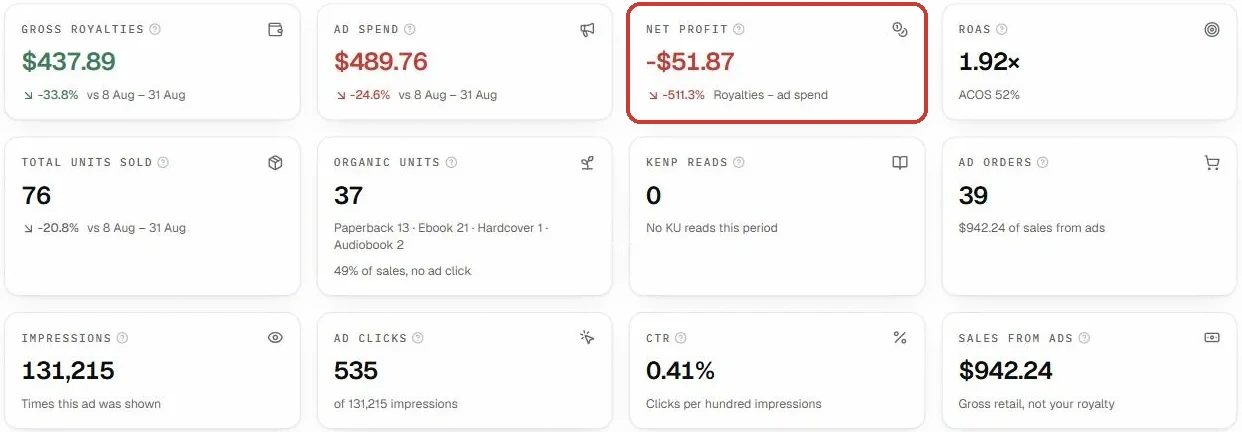
The book page puts every number for one book on one screen: royalties, ad spend, net profit, ROAS (sales per ad dollar) and ACOS (ad spend as a share of ad-attributed sales), units, organic units, KENP reads (Kindle Unlimited pages read), impressions, clicks, CTR (click-through rate) and the change against the previous period. That screen is the image at the top of this review.
In Amazon Ads, this book runs at 52% ACOS. That looks tolerable. AuthorLens shows $489.76 in ad spend against $437.89 in royalties: the book lost $51.87.
It works the other way too. In August, the ad console showed one of our books at 44.47% ACOS, the kind of number that usually gets a campaign cut. Net profit for those three days was $1,220.80. ACOS alone can't tell you which case you're in; your royalty per copy decides. You can find your own break-even ACOS in our free KDP royalty calculator, and why we judge ads by profit is in Amazon Ads for authors: profit, not ACOS.
The Change column sits in the per-book profit table (Performance → Book P&L). Right in the table, every book shows whether it grew or dropped against the previous period: a green plus means it earned more, a red minus means it earned less. Next to it you can show organic sales (Organic units) and ad sales (Purchases), so you see what drives the growth. It makes watching a book grow easy — no need to open two reports and compare the numbers by hand.

Your own expenses. Amazon knows what it paid you and what it charged you for ads. It doesn't know what you paid for the cover, the editor, a promo site or Facebook ads. On the Expenses screen you record those costs: what you paid for, one book or several, the amount, the date and the store. A cost can be one payment or the same amount over several days. From then on it comes off that book's net profit on the Dashboard, in Performance, on the book page and in the Telegram report. ACOS and the Ad Coach's verdicts don't change: they still count only what Amazon charged for ads.

Organic vs ad sales, by format
AuthorLens splits sales into ad-driven and organic, and shows every format: paperback, hardcover, Kindle and audiobook. KDP doesn't know which sales came from ads, and Amazon Ads doesn't see organic sales at all.
The book card on the Dashboard shows ad orders, organic orders and the format breakdown.

One of our books in September, all marketplaces: 76 copies — 42 paperback, 30 Kindle, 2 hardcover and 2 audiobooks. Almost half sold with no ad click. How to calculate this share by hand: organic vs ad sales on KDP. Judge that book by ACOS alone and you'd underrate the ads that pushed it up in search.
The "Ad-driven vs organic sales" block on the Performance screen shows the organic share and TACoS — ad spend divided by all royalties, not just ad sales. A growing organic share is the sign that ads are lifting the book, not just buying orders.


Video and Sponsored Brands ads, per book
Amazon reports video and Sponsored Brands campaigns without tying the spend to a specific book, so that money usually disappears from per-book math. AuthorLens assigns it to the books Amazon reports as sold and calculates each campaign's profit from royalties, not from list price. Screen: Performance → Video & brand ads.

In the Amazon Ads console this campaign looks fine: $128.74 spent, $206.91 in sales. But $206.91 is the list price. The royalty on those sales was $79.39, so the campaign lost $49.35. The console can't show you that. Whether video ads pay off for books at all: video ads for books.
Ad Coach: what to fix and what it's worth
Ad Coach isn't another table. It's a to-do list with a dollar amount on every item and a time label: "about a minute" or "a bigger job." Each item explains why and names the exact bid. Screen: Advertising → Ad Coach.

On our book for September 1–24 it found 7 fixes worth about $178.69 a month; two of them take a minute each. That is roughly four and a half months of the subscription.
| Ad Coach finding | What to do | Per month |
|---|---|---|
| Video campaign at 62.22% ACOS, break-even 38.4% | lower the bid from $0.84 to $0.52 a click | $61.69 |
| A search term brings orders, but its exact-match keyword is paused | turn the exact keyword back on, one minute | $57.48 |
| Campaign at 115.18% ACOS | lower bids or pause keywords that spend without sales | $44.15 |
| Campaign at 83.53% ACOS | bid from $0.93 down to $0.43 | $38.94 |
| Sales come through other broad keywords at $1.20 a click | bid the exact keyword above the broad ones | $25.45 |
The dollar amounts are AuthorLens estimates, not a guarantee. But they tell you which fix to start with.
Coming soon: one click or autopilot. AuthorLens is adding two modes to choose from: apply Ad Coach fixes with one click, where nothing changes until you press the button, or switch on an autopilot that manages bids for you. For now, you make the changes yourself in Amazon Ads.
Campaigns and negative keywords
The Campaigns screen shows all your ads in one place: spend, sales, ACOS, purchases, impressions, clicks, CTR, conversion rate and cost per click. The line that matters is profit from ads, calculated from royalties rather than list price.

Amazon says "$1,034 in sales." Of that, you keep about $397 in royalties, and the ads cost $517. That's −$121.
Negative keywords live inside each campaign. The Searches tab lists every customer search term with clicks and spend, and flags the dead ones with "consider negating." The Find negatives with AI button checks each term and flags the ones that aren't about your book. The rules we negate by, with a real campaign, are in Negative Keywords for Amazon Book Ads.

How to collect negatives in AuthorLens, step by step


- Open the campaign. Go to Campaigns and click the campaign name. At the bottom there are two tabs: Searches — every shopper search with clicks, cost per click, spend, purchases and sales — and Negatives — what's already blocked.
- Set the rules once. Click Negative keyword rules. The top box holds rules for every campaign and comes pre-filled. The core idea: the AI asks one question — was this shopper after a different book, or not a book at all? It never judges on clicks or money. Anything inside the book's subject (rival titles, other authors, editions, misspellings, broad words) it keeps; a neighbouring subject the book doesn't cover, and anything that isn't a book (a product, a person, a film, software), it blocks; when unsure, it keeps.
- Describe the book. Below, under This book: What this book is about — what the book is and which subjects a shopper could confuse it with; Rules for this book — what to always block and always keep for this title. Write in English even for a German or Spanish marketplace. Click Save; the book's rules follow it into every campaign that advertises it.
- Run the check. Click Find negatives with AI · N searches. The AI checks each search once and flags the irrelevant ones. It runs on your own ChatGPT or Claude subscription, so there is no API key to set up and no per-question bill.
- Review and add your own. The AI only answers “is this about our book?” and writes the reason next to every search it flags: for example, “Names a different author” or “seeking religious/faith content, not a cookbook.” What counts as off-topic comes from your rules in step 2. Searches that are dead by the numbers — 10+ clicks, no purchase — you tick yourself: sort by Total cost or Clicks.
- Copy. A bar with “N searches selected” and a Copy button appears above the table. Click Copy.
- Paste into Amazon Ads. Campaign manager → campaign → ad group → Negative targeting tab → Add negative keywords → choose Negative exact (that phrase only) or Negative phrase (every search containing it) → paste → Add keywords → Save.
- Confirm they're blocking. Back on the Negatives tab, click Refresh: pasted terms show Blocking on Amazon. Terms you copied but haven't pasted yet are listed too, so nothing gets lost. Copy all copies the whole list — handy for a new campaign for the same book.


How often: every 3–7 days. AuthorLens doesn't change anything in your ad account — the paste is yours. Track rankings, next to Copy, puts the selected searches on daily rank tracking.
Ads by the hour. The By hour of day card, on the Ad Coach and on each campaign page, adds up the last two weeks hour by hour on the store's own clock: ad spend and ad sales for each of the 24 hours. On one of our accounts, $68.27, or 18% of the spend, went on hours that sold nothing, while three hours (8am, 9am and 2pm) brought 39% of ad sales. An hour is called wasted only when its clicks should have brought at least three orders at the campaign's usual conversion rate; below that the card says nothing. Amazon keeps hourly figures for about two weeks, so the card can't look further back.

Change log. Every change Amazon recorded in the ad account: bids, daily budgets, pauses, new keywords and negative keywords, each with the value before, the value after and the exact time. It also lists every time a campaign ran out of its daily budget and how long its ads were off. Amazon keeps only the last 90 days of changes; AuthorLens copies them at every sync and keeps them. It is the quickest way to answer the question "what did I change before sales dropped?".

Amazon's suggestions, checked against your royalty. On a campaign page AuthorLens shows the daily budget Amazon suggests, the share of the week the campaign stayed in budget, and the sales Amazon estimates it missed while out of budget, restated as royalty. For each keyword it puts Amazon's bid range next to your bid. The Ad Coach never suggests a bid above what a click is worth to you, and it tells you not to raise the budget of a campaign that loses money, even when Amazon suggests it.
What AuthorLens keeps when Amazon doesn't. Amazon discards search terms after 65 days and ad changes after 90, and it retires the old Sponsored ads reports pages by December 31, 2026. AuthorLens stores what it has synced: search terms and changes from your first sync onward, plus 12 months of daily ad spend loaded when you connect. Days before your first sync can't be restored by anyone.
Where your ad was shown, video included. The Where your budget went table on the Campaigns screen splits spend by placement: top of search, product pages and other placements, separately for Sponsored Products and for brand and video ads. On one of our accounts over 30 days, brand and video ads at the top of search spent $170.47 and sold $526.77, an ACOS of 32.36%. The same ads on product pages spent $121.93 and sold $91.96, an ACOS of 132.59%. The Amazon Ads console doesn't show this split for video ads.

Ad data refreshed every hour. AuthorLens pulls ad data from Amazon every hour, and the top bar shows when the last sync ran. The Amazon Ads console itself refreshes these figures once a day, so the numbers in AuthorLens are much fresher. Today's spend, and how much of today's budget is already gone, are on your screen within the hour, without opening the console and rebuilding a report. One thing stays true everywhere: Amazon credits a sale up to 14 days after the click, so the newest days keep growing.
What buyers actually searched
The Searches screen shows the real phrases people typed into Amazon before they saw your book, and how many of them bought. This one is about how readers find you, not about spend.

For our book in September 1–24: 184 phrases and 569 readers. One phrase brought 46 people and 6 bought; another brought 29 and nobody bought. You can see at once which one works.
Words missing from your listing
The Keyword ideas screen compares your title, subtitle, description and bullets with two lists:
- "Your ads already sell these words" — words people searched before buying your book that aren't anywhere in your listing. Adding them costs no new bids and no testing.
- "Words other books use" — words from books Amazon shows next to yours, and how many of those books use each one.

Our book had 65 words missing from the listing and 39 already there. The most common missing word is used by 46 neighboring books. Where those words should go — title, subtitle or the seven KDP keyword fields — is covered in our guide to Amazon KDP keywords.
Keyword rankings and the road to #1
The Rankings screen checks every day where your book stands for each keyword, organic and sponsored. You can track up to 500 keywords. The Road to #1 block says in plain words how many copies a day you'd need to sell to keep pace with the leader.

On another of our books, all three keywords are on page one, the best at #7, and AuthorLens says to sell 39 more copies a day to keep pace with #1. It calls this a target, not a promise, but it's a target you can build an ad budget around.
Every keyword, every day
Below that is a matrix: keywords in rows, days in columns, and your book's position in each cell. Green is the top eight spots, beige is lower on page one, pink is pages 2–5, red means the book wasn't found.

Next to each keyword you see its ad spend and orders over 60 days. So you see what you pay for each keyword and whether it holds organically. Say a keyword like "dog training book" goes 32, 27, 19, 12, 9, 8, 6 over a week: the book climbed from page two into the top eight, with $40 of ads and 5 orders. That's a keyword where you can lower the bid and see whether the rank holds on its own. A keyword that sits on pages 2–5 for weeks with $100 spent and zero orders is a candidate to switch off.
Clicking a cell opens page one of the results for that day: who ranked above you, with their price, rating, review count and BSR (Best Sellers Rank). The Organic / Sponsored switch shows the same matrix for ad placements, so you see on which days your ad even made page one.
Competitors and side-by-side comparison
The Books screen finds competitors not by a similar title but by the keywords your book already sells on through ads. It then compares rating, reviews and price, and marks in red where a competitor beats you. Any book can be put on a watch list.

For one of our books it found 53 competing books; 52 of them have a rating to compare with. 49 of 52 are rated higher than our 4.1, and 29 have more than our 60 reviews. What to work on first is clear, and it isn't the bids: the rating, which means the book itself and its reviews.
The Compare screen puts up to four books side by side — yours or anyone's: price, rating, reviews, sales rank, length and estimated sales. Again, red marks where the other book is stronger.
Niches and Amazon categories
The Discover screen is the whole Amazon category tree with numbers for each category: how many books are growing, total books, reviews per day, median reviews, average rating and price. Growth is averaged over 13 days.

The Opportunities screen ranks Amazon categories (it calls them shelves) by how realistic it is to get in. Columns: Sales at #20, an estimate of how many copies a month the book in 20th place sells; Reviews to get in, the review count of that book; Top-20 reviews, the review count of a typical top-20 book; Gaining reviews, the share of books still collecting reviews; Chart movement, the share of books that changed place; Average price; and Reviews per book. You can filter by more than 30 topics, from cooking to children's books to health.

For example, two romance categories sell almost the same at #20: about 5,572 copies a month in Small Town Romance and 4,474 in Mafia Romance. The book at #20 has 32,591 reviews in the first and 46 in the second, and a typical top-20 book has 2,076 against 966. Same demand, very different entry bar. How to read numbers like these is in how to find a profitable KDP niche.
A niche is not forever. A category that let new books in last year can close up: the top books collect reviews, prices move, a strong new title arrives. Two things help you notice in time. On Opportunities, Chart movement and Gaining reviews show whether the top 20 is still changing. On the Books screen, Watch puts a competitor on daily tracking: AuthorLens follows its price, review count and rank every day. Watching costs one research credit a day per edition, so watch only the rivals whose moves you would act on.
Markets: royalties by marketplace, format and book
The Markets screen breaks royalties down marketplace → format → book. Every amount is in that marketplace's currency, and the bar color shows the change against the previous period.

For us, the US is 84% of all royalties: $505.16, down 24.8% from the previous 24 days.
Reports and alerts in Telegram
The numbers arrive in Telegram as a card, so you don't have to open KDP, Amazon Ads or AuthorLens itself. Setup: Settings → Telegram notifications → Connect Telegram. You pick the hour and time zone, and turn each report on or off.

The daily card has profit, royalties, ad spend and sales, compared with the day before. It covers two days ago, because Amazon takes about two days to finish reporting a day. Kindle and ad numbers settle in about two days; paperback sales keep arriving for up to 14 days, so that day's paperback count can still grow. A weekly card compares the last seven days with the seven before. The rankings card shows where your keywords moved.
Alerts come the moment something happens. Set a daily ad spend limit — $100, $200, $500 or any amount — and Telegram pings you as soon as the day's spend passes it. A problems alert tells you if syncing stopped, Amazon blocked a book or rejected an ad. Each alert can be switched on or off.

AI assistant
The AI assistant in AuthorLens answers questions about your books, ads and competitors, using your own numbers. AuthorLens calculates the figures first and the assistant only explains them, so it doesn't make numbers up. It's read-only: it can recommend, but it never changes anything in KDP or Amazon Ads.
We asked it: "How much did I make net this month so far, and which campaign eats the most money?"

The answer starts with the number: −$2.37 net for September 1–25, because ad spend ($526.19) was slightly above royalties ($523.82). Then the biggest money eater: a video campaign that spent $130.81 at 56.9% ACOS, above that book's break-even. And a next step: pause it for 3–5 days and re-check.
- Setup: the assistant runs on your own ChatGPT or Claude subscription. There is no API key to set up and no per-question bill.
- Language and style: in Your instructions to the assistant you tell it how to answer — for example, "Always answer in English. Give me the number first, then the reasoning."
- AI elsewhere in the app: the Find negatives with AI button on the campaign screen.
Connecting takes about a minute. Here is every step on screen:
Where the numbers come from, and is it safe
AuthorLens doesn't guess or fill gaps by eye. Everything comes from Amazon:
- Ad data through the official Amazon Ads API.
- Royalties and sales from your own KDP reports, through the AuthorLens Sync browser extension. The extension reads the same reports you see in your KDP account.
When Amazon hasn't finished reporting, AuthorLens says so on screen ("the last few days are still filling in"), instead of showing a number that will change.
It only reads, for now. AuthorLens doesn't change your bids, campaigns or books. Every fix Ad Coach suggests, you make yourself in Amazon Ads. One-click fixes and an autopilot are coming soon, and they switch on only if you choose them.
I've been using AuthorLens for almost a month, and I can say it really is the best tool for the full picture of stats and recommendations for KDP authors. Before that I used Google Sheets I built myself, pulling the data I needed from Amazon Ad Reports with formulas and scripts. But every time it meant importing all the reports by hand, adding new books by hand and fixing the formulas for them. With AuthorLens I don't want to go back to my spreadsheets and reports — you get used to good things fast. On top of the great stats, together with the support team we added a few features that are really useful to me, from Helium 10 and from my own wish list. Now I love it even more :) I'll keep using it!
 AnastasiyaAuthorLens user for about a month · translated from Ukrainian
Where AuthorLens is weaker
- Amazon only. If you also sell on Kobo, Apple Books, Draft2Digital or your own store, a multi-platform royalty tracker covers more channels. We compare three in Publisher Champ vs Book Report vs ScribeCount.
- Not an autopilot yet. It tells you what to change and by how much, but you make the change. One-click fixes and an autopilot mode are coming soon. If you want software that moves bids for you, see Adigy vs AuthorLens.
- Ad Coach figures are estimates. Useful for choosing what to fix first, not a forecast of your income.
AuthorLens vs Publisher Rocket vs Helium 10
| AuthorLens | Publisher Rocket | Helium 10 | |
|---|---|---|---|
| Made for | Amazon KDP books | book authors | product sellers on Amazon and other marketplaces |
| Your royalties and net profit per book | yes | not among its features | connects to Seller Central, not KDP |
| Each book's change vs the previous period | yes, Change column | no | no |
| Keywords, competitors, niches | yes | yes | yes |
| Ad fixes with a dollar amount | yes, Ad Coach | no | Helium 10 Ads, Diamond plan only |
| Daily keyword rankings for your book | yes, up to 500 keywords | no | Keyword Tracker, up to 500 keywords on Platinum |
| Amazon marketplaces | 23 | 8 | 24+ |
| Price | $39.99/mo or $32.99/mo yearly | $199 one time | $129/mo Platinum, $359/mo Diamond |
Competitor data from their own sites as of September 25, 2026: Publisher Rocket and Helium 10 pricing. Full reviews: Publisher Rocket review and Helium 10 for KDP. All 16 tools we compared are in the best KDP tools.
The short version: Publisher Rocket and Helium 10 help you decide what to publish. Neither sees what your books earn after ads. That is the question AuthorLens was built for.
We walk through the Rankings screen on one book and five keywords in Amazon Keyword Rank Tracking for Books.
Who AuthorLens is for
You run Amazon Ads on one or more books. This is where it pays for itself: net profit per book, organic vs ad sales, Ad Coach and daily rankings. One avoided losing campaign covers months of the subscription.
You haven't published yet. You'll only use the niche and category screens for now. A one-time research tool may be enough until the first book is live; see Publisher Rocket review.
You sell mostly outside Amazon. A multi-platform royalty tracker will fit better, since AuthorLens sees Amazon only.
FAQ
How much does AuthorLens cost?
$39.99 a month, or $32.99 a month billed yearly. There is one plan, and every feature is included.
Is it safe to connect my Amazon account to AuthorLens?
For now AuthorLens only reads data. Ad data comes through the official Amazon Ads API, and royalties come from a browser extension that reads your KDP reports. It doesn't change your bids, campaigns or books. One-click fixes and an autopilot are coming soon, and they switch on only if you choose them.
Is the AuthorLens Sync extension safe?
Yes. KDP has no API for royalties, so royalties, sales and KENP pages come in through the AuthorLens Sync browser extension. It reads your KDP reports — the same ones you see in your dashboard — and sends the numbers only to your own AuthorLens account. It talks to just three addresses: KDP Reports, the Amazon Ads console and AuthorLens itself. It never asks for your Amazon password, doesn't take your account cookies and changes nothing in KDP or your ads. The extension checker Socket shows no security warnings for it.
Does AuthorLens show profit after Amazon Ads?
Yes. It subtracts ad spend from KDP royalties for each book and marketplace, including video and Sponsored Brands ads, which it assigns to the books they sold.
Does AuthorLens manage my ads automatically?
Not yet. Ad Coach tells you what to change, why, and the exact bid, and you make the change yourself in Amazon Ads. Soon you'll be able to choose: apply fixes with one click, or switch on an autopilot that manages bids for you.
Does AuthorLens work with Kobo, Apple Books or other platforms?
No, it covers Amazon only, across 23 marketplaces. If most of your income comes from other platforms, a multi-platform royalty tracker such as Publisher Champ, Book Report or ScribeCount fits better.
AuthorLens vs Publisher Champ: which should I choose?
If you sell on many stores, Publisher Champ is cheaper and covers 25+ platforms. If most of your money comes from Amazon and you run ads, AuthorLens tells you what to change in your ads and what it's worth, and tracks up to 500 keywords every day.
Can't ChatGPT just answer from my own numbers?
An AI only sees what it's given. AuthorLens calculates the figures itself — royalties, video ads per book, break-even — and its built-in assistant only explains them, so it doesn't make numbers up.
Is this the same AuthorLens as in 2024?
No. In 2024 a different service with the same name launched for readers, to find books by an author's background. It has nothing to do with Amazon KDP analytics. AuthorLens for KDP authors is authorlens.remskill.com.
Royalties and ad spend per book, side by side — the way we track our own books. It also shows the highest ACOS each book can afford. Leave your email and we'll send it.
One email a week at most. Unsubscribe in one click.
Real campaign numbers, not theory. One recent case: the same keyword in two match types — broad at 9% ACOS, exact at 49%. In the Facebook group KDP Ads & Profit we break down cases like this every week.
Join the group →or follow Darya on LinkedIn

Selling books on Amazon KDP since 2023, 77,600+ copies sold. Every number in these articles comes from our own KDP and Amazon Ads accounts.
All articles