Amazon Ads
Negative keywords for book ads: the search term report, step by step
You bid on a keyword, but you pay for what the shopper actually typed. The search term report shows those searches. Here is where to find it, the rules we use to block the waste with negative keywords, and what turned up in one of our own campaigns over two weeks.
The short answer
A keyword is what you bid on. A search term is what the shopper actually typed. You pay for the second one. The search term report shows those queries, and it answers two questions: which searches to block with negative keywords, and which ones deserve a keyword of their own.
Below: where the report lives in the Amazon Ads console, the four rules we negate by, and a walkthrough of one of our own campaigns over two weeks.
What we look at in our own accounts when a campaign spends more than it brings in — and in what order. Leave your email and we'll send it.
One email a week at most. Unsubscribe in one click.
Where to find the search term report in Amazon Ads
- Open the campaign.
- Open the ad group.
- Click Search terms in the left menu.

For every search the table shows:
- Customer search term — what the shopper typed;
- Keywords — which of your keywords caught it, and the match type;
- Clicks, CPC, Total cost — what it cost you;
- Purchases, ACOS — what it sold.
Each row has an Add as button on the left with three options: Add as keyword, Add as negative exact and Add as negative phrase.
Three things the console doesn't say loudly:
- It keeps only 65 days, and only searches that got a click. The note at the bottom says so: "Only search terms with clicks in the last 65 days are available." Skip two months and the older searches are gone.
- You look at one ad group at a time. Ten campaigns means ten trips.
- The table doesn't tell you which search is bad. It shows numbers; the call is yours.
AuthorLens, the KDP analytics tool we use, covers all three. It keeps every search term from the day you connect, not just the last 65 days. It shows a whole campaign's searches in one table. And it flags the ones that aren't about your book. The campaign below is shown in it.
Four rules: what to negate and what to leave
1. The search isn't about your book — negate it now. Don't wait for clicks. Someone looking for meal prep containers will never buy a cookbook.
2. The search is on topic, but has 10 or more clicks and no order — negate it. Ten shoppers came and left. More of the same will only cost more. Amazon itself suggests judging a search after at least 20 clicks (Amazon Ads guide). We cut earlier, at ten: at our $1.33 per click, twenty empty clicks is almost $27 on a single search.
3. Leave these alone:
- typos — the shopper wanted the same thing;
- single broad words like "book" or "recipes." One of those as a negative phrase will cut off half your working searches.
A separate note on competitor authors and titles. It's tempting to think their readers are your buyers. Sometimes they are, and if a competitor search brings orders, keep it. More often it brings only clicks: the shopper was looking for one specific book and bought that one. So we don't negate competitors in advance and we don't protect them either. They go by rule 2: ten clicks, no order, negate.
4. Pick the match type. Negative exact blocks only that exact search and its close variations. Negative phrase blocks every search that contains the complete phrase (Amazon Ads guide). Use phrase for a clearly foreign topic, exact for one search that didn't convert.
How to choose the keywords themselves and their match types is in our KDP keywords guide.
A real campaign: two weeks of search terms
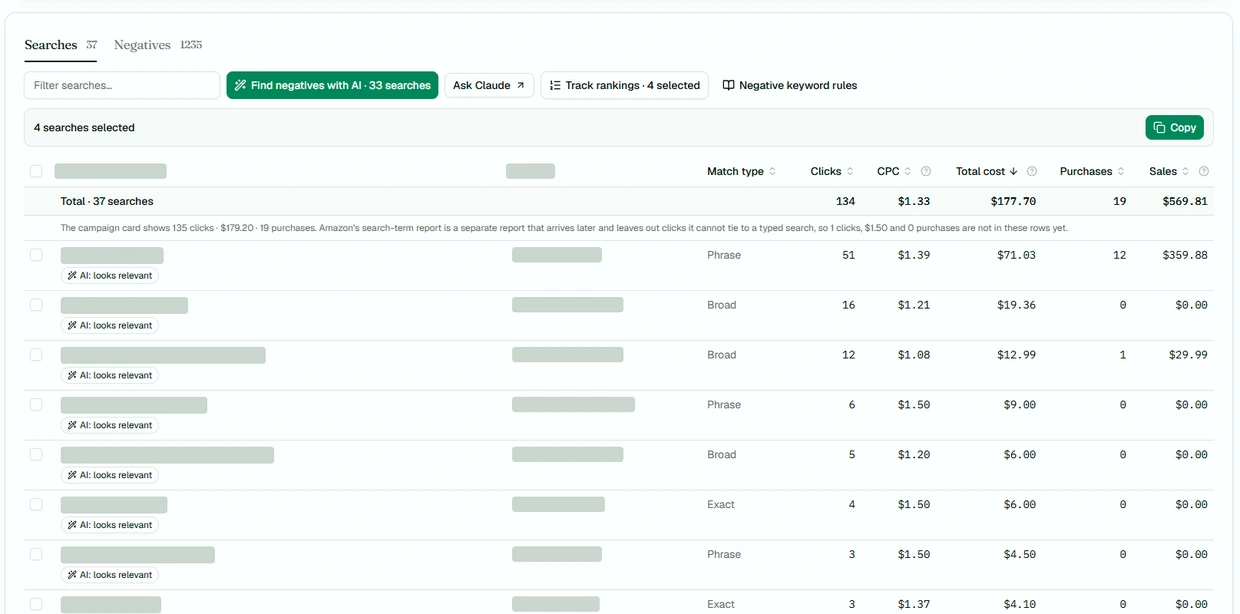
One Sponsored Products campaign, September 22 – October 5, 2026, opened in AuthorLens, where the whole campaign sits in one table with a total row on top.
| Different searches | 37 |
| Clicks | 134 |
| Spend | $177.70 |
| Orders | 19 |
| Sales | $569.81 |

What stands out:
- One search brought 12 of the 19 orders: 51 clicks, $71.03 spend, $359.88 in sales. You don't touch a search like that. You move it into its own exact-match campaign with its own bid. And you start tracking it: where the book ranks for it without the ad is covered in Amazon Keyword Rank Tracking for Books.
- The second-biggest spender had 16 clicks, $19.36 and no orders. It's on topic, but that's rule 2: more than ten clicks without a purchase. A negative keyword candidate.
- Then the long tail: searches with 1–6 clicks each. Too early to judge by numbers, so here you judge only by what the search means.
How to find irrelevant searches in a minute
Thirty searches with one click each is the tedious part: you have to read every one and decide whether it's about your book. In AuthorLens the Find negatives with AI button does that reading. It checks each search against what the book is about and labels it.
In this campaign it checked 33 searches and flagged 4 as consider negating, each with the word to block and the reason.

Then two clicks:
- Tick the searches you agree with.
- Press Copy and paste the list into Amazon Ads: open the campaign, click Negative targeting on the left, and on the Negative keywords tab press Add negative keywords. If only one ad group needs the negatives, the same Negative targeting section exists inside the group.

The tool changes nothing in your ads on its own. The decision and the paste are yours. We use AuthorLens daily and recommend it.
One caveat: "looks relevant" only means the search is on topic. The AI also called the 16-click, zero-order search relevant, and by meaning it is. Whether to block it is decided by the numbers, under rule 2.
What negative keywords can't fix
Negative keywords work only in search. They do nothing for ads shown on other books' product pages, because nobody typed anything there.
The same campaign shows it clearly:
| Placement | Orders | Spend | ACOS |
|---|---|---|---|
| Top of search | 17 | $130.14 | 25.50% |
| Product pages | 2 | $46.51 | 77.50% |
| Other placements | 0 | $1.05 | — |

A quarter of the money went to product pages and returned 2 orders at 77.50% ACOS. No negative keyword will fix that. It's a placement setting, covered in our guide to Amazon Ads placements and bidding. And for where the line between profit and loss sits, see why to judge campaigns by profit, not ACOS.
How often to check
We look every day. But we judge a change no sooner than 7 days after making it.
- Every day — go through the searches of running campaigns. A search that isn't about the book gets negated on the spot; there is nothing to wait for.
- After any change, at least 7 days. Added negatives, changed a bid or a budget: watch for a week and touch nothing else in that campaign. Otherwise you can't tell what worked. Amazon suggests giving negative keywords even longer, two weeks or more (Amazon Ads guide).
- A new campaign — same rule: first conclusions 7 days after launch.
- Don't judge the last two or three days. Amazon reports orders with a delay, and a fresh search with "no sales" can show a sale a few days later.
- Mind the 65 days if you work in the Amazon console: older searches drop out of it. In AuthorLens they stay.
The downloadable report for all campaigns at once
The Search terms tab shows one ad group. To see everything together, the Amazon Ads console has a reports section, the reports icon in the side menu. There you can download the Search term report as a file:
- for Sponsored Products;
- for Sponsored Brands, which also covers Sponsored Brands video.
Both reports list only searches that got at least one click (Amazon Ads reporting guide for books).
You'll have to open the file in a spreadsheet and sort it yourself. And note that Amazon is retiring the old reports section by December 31, 2026; what changes is covered in our KDP rule changes for 2026.
Our take
The search term report is the only place that shows which words you are actually paying for. Once a week: irrelevant searches get negated right away, on-topic searches and competitor names after ten clicks with no order, and strong searches get their own keyword. What leaks on product pages is fixed with placements, not negatives.
Don't want to deal with ads yourself? Campaign setup and ongoing management can be handed to an ads specialist we trust — message him on Telegram @Lamgr_557359.
FAQ
Where is the search term report in Amazon Ads?
Open the campaign, open the ad group and click Search terms in the left menu. It lists shopper searches with clicks, cost and purchases for the last 65 days.
What is the difference between a search term and a keyword?
A keyword is what you bid on. A search term is what the shopper actually typed. One broad or phrase keyword can catch dozens of different searches.
When should I add a negative keyword?
Right away if the search is not about your book. After 10 clicks with no order if the search is on topic but nobody buys.
What should I not negate?
Typos and single broad words like book: one of those as a negative phrase cuts off working searches. Competitor authors and titles are neither negated in advance nor protected: 10 clicks with no order, and they go.
Negative exact or negative phrase?
Negative exact blocks only that exact search. Negative phrase blocks every search containing the phrase. Use phrase for a foreign topic, exact for a single search that did not convert.
How often should I check search terms?
Every day. But after any change — negatives, a bid, a budget — judge the result no sooner than 7 days later, so there is data to judge by.
How long does Amazon keep search terms?
65 days, and only searches that got a click. AuthorLens keeps every search term from the day you connect.
Royalties and ad spend per book, side by side — the way we track our own books. It also shows the highest ACOS each book can afford. Leave your email and we'll send it.
One email a week at most. Unsubscribe in one click.
Real campaign numbers, not theory. One recent case: the same keyword in two match types — broad at 9% ACOS, exact at 49%. In the Facebook group KDP Ads & Profit we break down cases like this every week.
Join the group →or follow Darya on LinkedIn

Selling books on Amazon KDP since 2023, 77,600+ copies sold. Every number in these articles comes from our own KDP and Amazon Ads accounts.
All articles